



Shared Mailboxes & Guest Access: Hidden M365 Risks
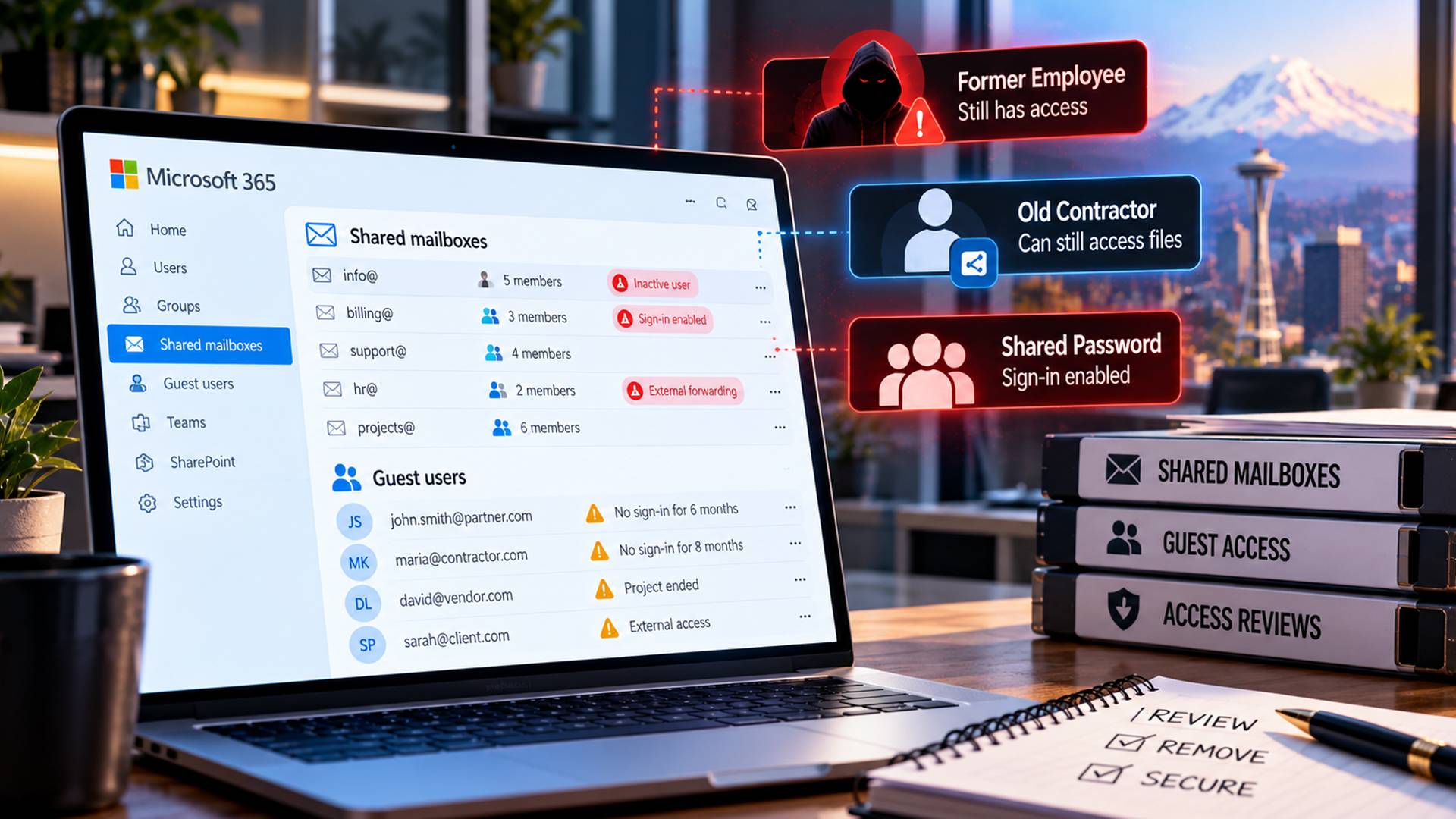
Table of Contents
- What Shared Mailboxes and Guest Access Are
- How These Gaps Form
- Why It Matters More Now
- What an Unmanaged Gap Can Cost
- How to Check Your Own Setup
- Who Should Own Access Decisions
- Frequently Asked Questions
- Key Takeaways
- Next Steps
Introduction
A shared mailbox called billing@ that three people used, one of whom left last spring. A guest account for a contractor whose project ended eight months ago, who can still open the project’s Teams channel and files. Neither looks like a security incident. Both are the way one starts.
Microsoft 365 makes it quick to share a mailbox or invite an outside collaborator. It does not remind you to remove that access when the reason for it ends. Over time, small conveniences add up to gaps that nobody notices until something goes wrong.
This guide explains how shared mailboxes and guest access work, how the gaps form, and how to check your own setup.
Quick Answer
- Shared mailboxes and guest access are standard Microsoft 365 features, and neither expires or gets reviewed on its own.
- The risk comes from access that stays in place after its purpose ends, and from a few common misconfigurations.
- The most common problems are shared mailboxes with sign-in enabled and a shared password, offboarding that stops at one account, stale guest accounts, and external forwarding rules.
- You can check most of this yourself in the Microsoft 365 admin center and Microsoft Entra admin center. Plan to repeat the review on a schedule.
What Shared Mailboxes and Guest Access Are
A shared mailbox lets several people send and receive email from one address, such as info@ or billing@. By default, Microsoft blocks direct sign-in to the shared mailbox account. People reach it through their own accounts after being granted permission. Per Microsoft’s documentation, a shared mailbox does not need its own license unless it grows past 50 GB or needs features such as litigation hold.
Guest access lets someone outside your organization, such as a contractor, client, or partner, sign in with their own credentials to reach specific files, folders, or Teams channels. Guests are created in your directory, but they are not employees and are usually not covered by the same device and onboarding controls.
Both are useful. The trouble starts when access is granted and never revisited.
How These Gaps Form
It rarely comes down to one mistake. These are the patterns that show up most often:
- The shared mailbox has a password that people use. Sign-in is blocked by default, but someone enables it so a team can log in directly, often with one password everyone knows and no multi-factor authentication. Nobody can say who used it last.
- Offboarding stops at one account. A departing employee’s main account is disabled, but their delegated access, Send As rights, mail forwarding rules, or mobile device sync are never reviewed. If the account stays active by mistake, so does the access.
- A mailbox changes hands without anyone noticing. A departing person’s mailbox is converted to a shared mailbox, and anyone granted access now sees years of their email.
- Guests outlive the project. A contractor is invited to a Teams channel or SharePoint site for a one-time project. No one sets an end date, so the account stays active and keeps access.
- Permissions are changed ad hoc. Access gets added by email request, and nobody keeps a record of who has what or why.
Six months or two years later, nobody in the business can say with confidence who can see what.
Why It Matters More Now
- More of your sensitive information lives in Microsoft 365 rather than on a server in your office, so access mistakes expose more.
- Hybrid and remote work mean guest and shared access gets granted more often, from more places, with less oversight.
- Microsoft 365 Copilot and similar tools work with whatever a user can already reach. They don’t add permissions, but they make over-shared content easier to find.
- Clients, cyber insurers, and auditors increasingly ask for evidence of regular access reviews, not just a firewall.
What an Unmanaged Gap Can Cost
- Data exposure. A former employee, past vendor, or forgotten guest keeps access to sensitive email or files.
- Compliance and contract trouble. You can’t answer a client’s or auditor’s question about who has access to their data.
- Slower incident response. If something goes wrong, an undocumented access list makes it much harder to trace what happened or decide what to restore from backup.
- Cleanup time. Reconstructing access after the fact takes far longer than reviewing it on a schedule.
Firms that handle confidential client or donor information, including law firms, non-profits, professional services firms, and architecture firms, feel this most, because shared inboxes and outside collaborators are part of how they work.
How to Check Your Own Setup
Menu names change as Microsoft updates its admin portals, so confirm each step against current Microsoft Learn documentation. The idea is the same either way.
Shared mailboxes
- List every shared mailbox. In the Microsoft 365 admin center, look under Teams & groups, then Shared mailboxes.
- For each one, review who has Full Access, Send As, and Send on Behalf. Remove anyone who no longer needs it.
- Check that sign-in is blocked for the shared mailbox account. If it is enabled, find out why and who is using it.
- Look for mail flow or inbox rules that forward messages outside your organization.
- Write down a named owner for each mailbox.
Guest accounts
- In the Microsoft Entra admin center, list users and filter by user type Guest.
- Check the last sign-in activity. Guests who have not signed in for months are cleanup candidates.
- For each remaining guest, confirm the project, the person who invited them, and whether it is still active.
- Review your guest and external sharing settings in Microsoft Teams and SharePoint so you know who is allowed to invite outsiders.
- If your licensing includes Microsoft Entra ID P2 or ID Governance, you can automate this with access reviews. Without that license, a quarterly manual review with a simple spreadsheet works.
Who Should Own Access Decisions
Microsoft 365 does what it’s told, so the real question is who is doing the telling. A few ground rules hold up at almost any company size:
- Every shared mailbox has a named owner, a person rather than a department.
- Every guest has a business reason and an end date.
- Offboarding includes a check of shared mailboxes, delegated access, forwarding rules, and guest relationships they managed.
- Someone in leadership signs off on reviews so they stay on the calendar.
None of this requires a new tool. It requires deciding who is responsible. Shadow IT makes the problem worse, because tools and sharing set up outside IT’s view never enter the review at all.
Frequently Asked Questions
Not by themselves. Both are standard features. The risk comes from access that is never reviewed or removed, and from setups such as enabled sign-in with a shared password.
Generally not. Shared mailboxes do not need a license under 50 GB, and guest accounts are typically free. The cost shows up in risk and cleanup time. Check Microsoft’s current licensing terms for your plan.
If no one can list every shared mailbox and guest account, along with why each still exists, that’s a strong sign a review is overdue.
Yes. Confirm who still needs access before removing anything, so active collaborators aren’t cut off. Start with accounts that show no recent activity.
Quarterly is a reasonable starting point for most small and midsize businesses, plus a review whenever someone leaves or a project ends.
Review their permissions to it along with their own account. If they were its informal owner, move ownership to someone else so someone stays accountable.
Key Takeaways
- Shared mailboxes and guest access are useful features that need an owner and a review schedule.
- Gaps form gradually through reasonable one-off decisions that nobody revisits.
- The most common issues are enabled sign-in with shared passwords, incomplete offboarding, stale guests, and external forwarding.
- You can check most of it yourself, starting with the lists of shared mailboxes and guest accounts.
- Repeat the review quarterly, since access drifts as people join, leave, and finish projects.
Next Steps
If you can’t list who has access to your shared mailboxes and guest accounts right now, start with the steps above. If you’d like a second set of eyes, Zen Techworks can review your Microsoft 365 environment as part of a Microsoft 365 security assessment, or you can schedule a free IT assessment or call (425) 249-3978.

Recent Posts


How can we help?
Whether you need immediate help with an IT issue or want to discuss your long-term IT strategy, our team is here to help.
Call us at 425-249-3978 or complete the form below and we'll help in any way we can.